For Police Officers & Staff
Helping Police Officers & Staff Achieve Higher Ranks Using My 95% Success Rate Framework
30+ Years Experience│1000+ Promoted│95% Success Rate
About Steve

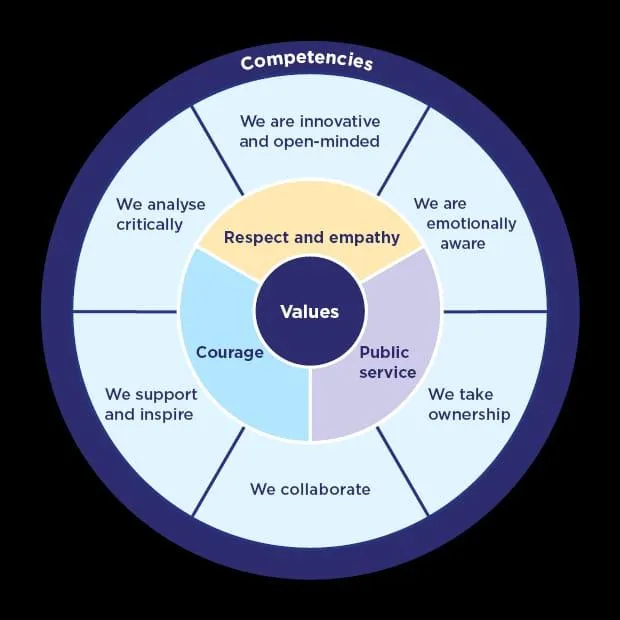
Steve Jackson is a former Detective Inspector with over 30 years of policing experience. He has spent the past five years working nationally with Police Now, supporting hundreds of talented and diverse officers to progress through the ranks. As an independent consultant and mentor, Steve, aka CopCoach, specialises in simplifying the Competency and Values Framework and demystifying promotion processes across all ranks & grades.
30+ Years Experience
Coached 1,000+ Officers
Secured Promotions Himself




The 95% Rank-Up Framework Breakdown
Step 1: Promotion Strategy & Gap Analysis
We identify exactly what boards assess at your target rank and where you’re currently falling short.
Step 2: Competency Evidence Development
You’ll build clear, structured evidence aligned with national promotion frameworks — no waffle, no guesswork.
Step 3: Application & Written Submission Mastery
Every answer is refined to board-ready standard, with real examples that score highly.
Step 4: Interview & Board Preparation
You’ll be trained to deliver confident, structured responses under pressure.
Step 5: Mock Boards & Refinement
We run real-world mock boards so nothing surprises you on the day.
Step 6: Final Polish & Confidence Lock-In
You walk into your board calm, prepared and confident.
STILL NOT SURE?
Frequently Asked Questions
Question 1: Who is CopCoach for?
CopCoach is for serving police officers and police staff preparing for promotion to Sergeant, Inspector, Chief Inspector or equivalent roles. It’s designed for officers who are serious about passing their board and want expert guidance from someone who understands the process from the inside.
Question 2: I’ve failed a promotion board before — can this still help me?
Yes. In fact, many officers I work with have failed one or more boards previously. Most failures come down to structure, evidence quality, and interview delivery — all of which we systematically fix using the 95% Rank-Up Framework.
Question 3: How is this different from generic promotion courses or online resources?
Most courses provide theory or generic advice. CopCoach is 1-1, tailored coaching based on your target rank, your experience, and your force’s expectations. You get direct feedback, mock boards, and practical refinement — not just information.